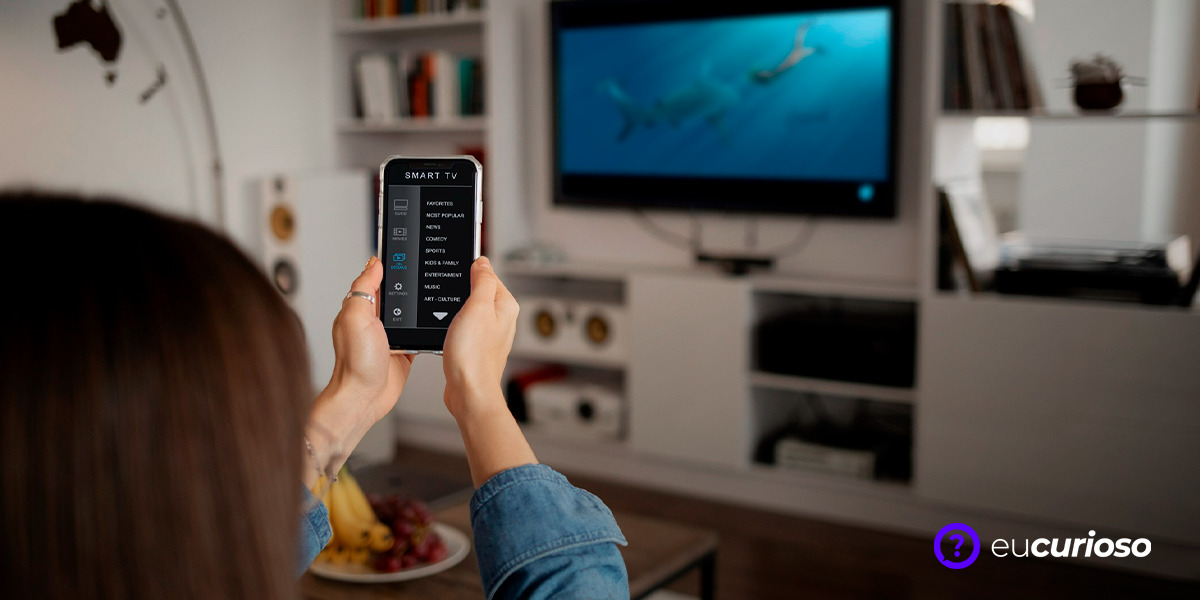
Remote control apps on your phone offer a new way to interact with your home appliances. This is because smartphones have evolved so much that they now work as universal controls, bringing practicality to your daily life.
Imagine connecting the TV, adjust the air conditioning and even control the lights, all without getting up from the couch to look for the remote? It's a convenience that's at your fingertips and it's amazing what you can do with just a few taps on the screen.
But how does this work in practice? Stay with me and I’ll show you how to use just your cell phone to control all your devices!
How to use your cell phone as a remote control?
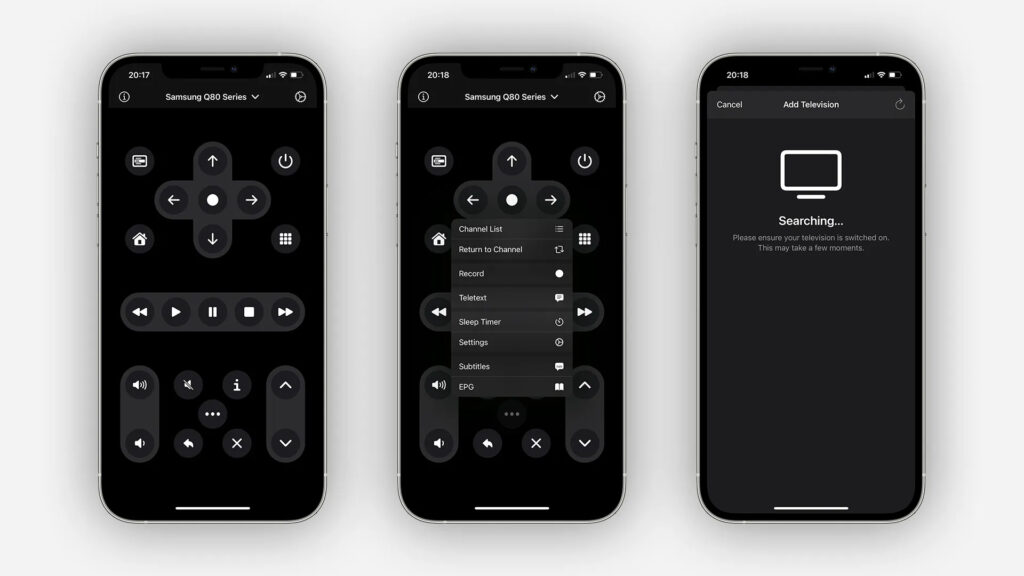
Most remote control apps on your phone use infrared technology or Wi-Fi connection to communicate with devices. If your smartphone has an infrared emitter, great, it can work as a universal remote control for multiple devices, without depending on the internet.
To get started, you’ll need to download one of the remote control apps we’ll recommend below. The first step, after installation, is the initial setup, where you choose the type of device you want to control – it could be your Smart TV, your air conditioner, or even audio devices.
Then, select the brand and model – the app will tell you which buttons to try to make sure they’re working properly. Once you’ve tested the buttons and made sure everything is working properly, save the configuration. That’s it! Your smartphone is now ready to use.
Remember that for devices that require a Wi-Fi connection, it is essential that the cell phone and the device are connected to the same Wi-Fi network. This allows you to control everything in a simple and intuitive way with just a few taps.
Discover the best remote control apps for your cell phone
Discover some of the best remote control apps to transform your cell phone. Try the one that seems to best fit your needs and the device models you have at home.
Remote: remote for Samsung TV
Remotie is an app for those who have a Samsung TV and want ease of use. With a user-friendly interface, it allows you to quickly adapt to its use – it also has a virtual touchpad to navigate menus and even controls for games available on the TV.
It is compatible with both Android and iOS, supporting most Samsung models. It is worth mentioning that, despite being specialized in Samsung TVs, Remotie is not an official app from the brand, but it works well and has good user reviews.
You can download Remotie directly from Google Play or App Store and start using it right after the quick and hassle-free setup.
Smartify – Remote for LG TV
Smartify is ideal for those who own LG devices. In addition to offering a complete virtual remote control, the free version already has several features, while the paid version provides extras such as advanced settings and an ad-free environment.
In terms of usability, it stands out for its quick access to the home screen and settings, as well as the basics such as volume and channel control. It is important to note that, even though it is an unofficial LG app, it is compatible with several models of the brand and provides a very complete user experience.
Smartify is available for both Android and iOS and you can find it in the respective app stores, ready to turn your phone into a smart control.
Remote control for Smart TV
If you want an app that supports multiple brands, this might be the one for you. It can help you with both leisure time and everyday needs, with its channel control, volume control, and integrated touchpad.
In addition to being friendly with well-known brands like Samsung, LG, and Sony, it also extends to include AOC, TCL, and even devices like Chromecast. The downside is the ads, which can be annoying for some users.
Available for download on Android and iOS devices, the Smart TV Remote Control can be easily found in app stores.
Roku
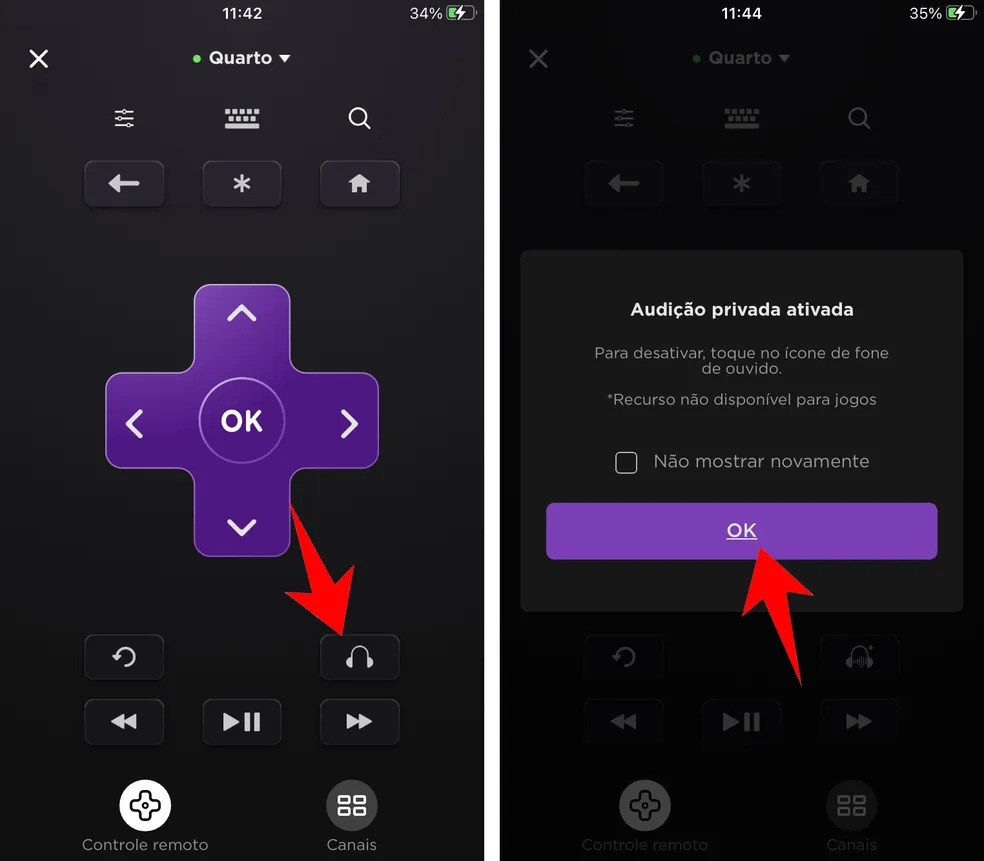
Roku is the official app for those who own Roku devices. With it, you have a fluid experience and exclusive features, such as searching using your phone's keyboard, quickly adding channels, streaming content from your smartphone to your TV, and even the option of private listening, where you listen to the TV's audio through your headphones.
Compatibility is limited to devices running the Roku OS, but if you have one, this app is a solid choice. Plus, it’s a safe and secure way to get an official app with continued support from the brand.
Whether you’re on an Android or iPhone device, you can download Roku from your app store and start enjoying all these benefits right away.
Sure Universal Remote Control
Want the power to control virtually anything in your home from your cell phone? SURE could be the answer. Its strength is wide compatibility, as well as controlling devices via both Wi-Fi and infrared.
With SURE, you can control not only your Smart TV, but also other devices such as sound systems, for example. The setup process is intuitively designed to guide you step by step until you can fully use the application.
Unfortunately, it is only available for download on Google Play. With positive user reviews, SURE has stood out as an efficient alternative for controlling home devices.
Mi Remote Controller
Developed by Xiaomi, this is a robust option for controlling a variety of devices, from air conditioning to security cameras. Compatibility is one of its great advantages, embracing different brands and models.
However, you’ll need a smartphone with IR capability to take full advantage of the Mi Remote Controller, as that’s how it connects to most devices. If your phone has this capability, this app could be a great choice.
Found on Google Play, the Mi Remote Controller is only compatible with Android devices. Its development by Xiaomi ensures smoother integration with its products, but without limiting its use on other devices.
Configuration step by step
Getting started with a remote control app on your phone is a very simple process. Here I will show you what you generally need to do, step by step.
- Make and Model Selection: The first step is to select the make and model of the device you want to control. The app usually has a list to choose from;
- Button Test: After selecting, the app may suggest that you test the buttons to make sure they are working properly. You may need to try out a few different codes until you find the one that works with your device;
- Saving Settings: When you find the right set of commands, save them in the app so you don't have to redo the process every time you use it.
Please note that depending on the app, there may be additional steps or specific features during setup. For example, some apps may require you to log in or scan a QR code.
After that, you're done! You'll find that after setting up your first device, the next ones will be even easier.
Conclusion
As you have seen, remote control applications on cell phones have transformed the way we interact with technology in our homes, offering unprecedented convenience.
In addition to convenience, they promote technological integration that clearly demonstrates the advancement of smartphones as multifunctional tools. The use of infrared and Wi-Fi connections to control devices, for example, highlights how modern connectivity can simplify routine tasks.
Explore the various application options available to find the one that best suits your needs, after all, each of them has its own characteristics and advantages!